LinkAvroOpen LinkAvro
LINKAVRO HELP CENTER

Learn every workflow, one clear step at a time.

Short explanations, real product screenshots, and the exact next action for a focused LinkedIn connection campaign.

Ask LinkAvro GuideAnswers from this Help Center

Sign up with Google or verify your email before entering LinkAvro. Start here: Choose Start free on the LinkAvro home page.

Create and verify your account Upload LinkedIn contacts Install the Chrome extension
Based on LinkAvro resources No passwords or private data needed Links to the exact guide
START HERE

Your first useful workflow

Follow these four guides in order if LinkAvro is new to you.

9 guides

Create and verify your account

Sign up with Google or verify your email before entering LinkAvro.

What this is for

Account verification protects your workspace and keeps campaign access tied to you.

  1. Choose Start free on the LinkAvro home page.
  2. Continue with Google, or create an account with your email and password.
  3. If you use email, open the verification message and follow its link.
  4. Return to LinkAvro and open your outreach workspace.

Good to knowIf the verification message is missing, check spam and then use Resend verification email.
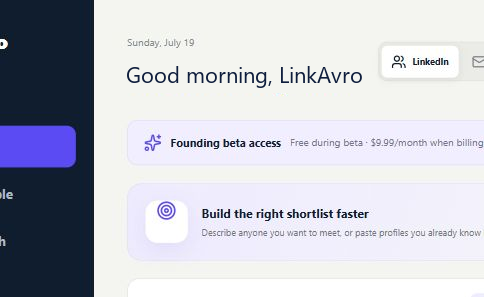
LinkAvro workspace after account verificationProduct screen

Upload LinkedIn contacts

Add a reviewed list of LinkedIn profile URLs with CSV, TXT, or pasted text.

What this is for

Manual import keeps the workflow precise: you choose the people, and LinkAvro validates profile URLs and removes duplicates.

  1. Open Contacts and choose Upload CSV or TXT.
  2. Use one LinkedIn profile URL per row; names and company fields are optional.
  3. Review the valid and rejected rows before importing.
  4. Remove anyone you do not intend to contact, then save the reviewed list.

Good to knowA small, relevant list is easier to personalize and monitor than a large generic upload.

Contact import and review screen in LinkAvroProduct screen

Install the Chrome extension

Install LinkAvro in the normal Chrome profile where you already use LinkedIn.

What this is for

The extension identifies the LinkedIn profile open in your Chrome profile so the signed-in portal can connect it without exposing raw browser session values.

  1. Install LinkAvro from the Chrome Web Store. If the listing is not available yet, download the extension ZIP from Home and load it unpacked.
  2. Install it in the same Chrome profile where you use LinkedIn, then pin LinkAvro from Chrome's Extensions menu.
  3. Open LinkAvro's extension popup and choose Open my LinkedIn profile. It opens https://www.linkedin.com/in/me.
  4. Return to LinkAvro and choose Connect LinkedIn.

Good to knowInstall it in your normal Chrome profile so LinkedIn and Google sign-in use the accounts and passwords already saved there.

LinkAvro extension setup and connection statusProduct screen

Connect your LinkedIn account

Connect LinkAvro to the LinkedIn account already open in Chrome.

What this is for

The signed-in portal asks the installed extension for the active LinkedIn profile and registers it without asking for your LinkedIn password or raw browser session values.

  1. Sign in to LinkedIn normally in the same Chrome profile.
  2. Open the LinkAvro extension and choose Open my LinkedIn profile, or visit https://www.linkedin.com/in/me directly.
  3. Return to LinkAvro and choose Connect LinkedIn.
  4. Wait for the status to change to Connected to LinkedIn.

Good to knowLinkAvro should never ask for your LinkedIn password, cookies, session token, or verification code.

Connected LinkedIn status inside LinkAvroProduct screen

Create a connection campaign

Choose reviewed contacts, set a daily limit, and approve the campaign.

What this is for

A campaign turns your contact list into a paced queue of LinkedIn connection requests.

  1. Connect LinkedIn and import at least one valid contact.
  2. Open Campaign and choose Start campaign.
  3. Select the reviewed contacts you want to include.
  4. Set a conservative Requests per day limit.
  5. Review the settings and approve the campaign.

Good to knowStart with a low limit and monitor results. Automation does not remove LinkedIn account restrictions or risk.

Connection-request campaign setup in LinkAvroProduct screen

Add an optional connection note

Write one short note and personalize it with the contact's first name.

What this is for

LinkAvro can attach an optional personalized note to approved connection requests. Direct-message follow-up sequences are not included in the current connection-outreach plan.

  1. Open the campaign setup.
  2. Turn on the optional connection note.
  3. Write a concise reason to connect and insert the supported first-name variable if useful.
  4. Preview the note and confirm it reads naturally for every selected contact.
  5. Approve the campaign only when the wording is accurate.

Good to knowRelevant context beats a generic pitch. Keep the note short enough for LinkedIn's current limit.

Personalized connection note preview in LinkAvroProduct screen

Pause or disconnect safely

Stop new actions immediately with Pause or remove the browser connection with Disconnect.

What this is for

Pause keeps the campaign available without running more requests. Disconnect removes the active extension connection.

  1. Open the running campaign.
  2. Choose Pause to stop new connection-request actions.
  3. Review any action already in progress before closing LinkedIn.
  4. Choose Disconnect when you want to remove the browser connection completely.
  5. Reconnect and explicitly resume when you are ready.

Good to knowIf LinkedIn shows a warning or verification screen, leave the campaign paused and follow LinkedIn's instructions.

Campaign pause and browser disconnect controlsProduct screen

Understand plans and billing

Review professional plan pricing and your current access status.

What this is for

Billing shows the $9.99 monthly and $59.99 yearly professional plans. When complimentary access is displayed, no card charge can start.

  1. Open Billing from the main navigation.
  2. Review the current access status and plan options.
  3. If your workspace shows complimentary access, self-service payment is disabled and no new card charge can start.
  4. Use the hosted checkout only when the billing page presents an enabled plan button.

Good to knowNever enter payment details outside the hosted checkout opened directly from LinkAvro.

LinkAvro professional plan and billing statusProduct screen

Fix common setup problems

Check account verification, extension installation, browser connection, contacts, and campaign prerequisites.

What this is for

Most disabled actions have one missing prerequisite that the Home setup checklist can identify.

  1. Refresh LinkAvro once and read the message beside the disabled action.
  2. Confirm your LinkAvro email is verified.
  3. Confirm the unpacked extension is enabled and LinkedIn is signed in in the same Chrome profile.
  4. Check that LinkedIn shows connected and at least one valid contact is imported.
  5. If the problem remains, record the exact warning and page name before contacting support.

Good to knowDo not send support your LinkedIn password, cookies, session token, payment details, or verification codes.

LinkAvro setup checklist used for troubleshootingProduct screen

Ready to build a thoughtful outreach queue?

Start small, verify your list, personalize the message, and approve every action.

Open LinkAvro